Showing posts with label Microsoft. Show all posts

Surface 2 Pro Install Linux Ubuntu 24.04 LTS

Windows 10 support ended. Microsoft Surface 2 Pro devices can't officially be updated to Windows 11. This guide shows how to switch to Linux Ubuntu 24.04 LTS instead:

Installation steps 

  1. Download Rufus https://github.com/pbatard/rufus
  2. Download Linux, e.g. Ubuntu 24 https://ubuntu.com/download/desktop
  3. Format USB stick with Rufus
    - Select the USB stick (all files on it will be erased)
    - Select image file
    - Select MBR
    - Select BIOS or UEFI
    - Select Fix for older BIOSe
    - Select FAT32
    - Press Start
    Rufus Linux Ubuntu 24 USB bootable stick

  4. Shutdown Surface 2 device
  5. Hold Volume-Up & hold Home-Button until Surface logo appears
  6. Disable Secure Boot --> Red background around Surface logo on boot
  7. Shutdown Surface 2 device
  8. Insert USB Stick into Surface 2
  9. Hold Volume-Down & press Home-Button until Surface logo appears 
  10. Select Install Ubuntu in GRUB loader 
  11. Optional: For additional security (using encryption@rest) use lvm with encryption and use a long unique passphrase. 

Result 


Other Microsoft Surface devices might use: https://github.com/linux-surface/linux-surface/wiki/Installation-and-Setup
 

Windows Persistence Map v0.1

Mitres Att&ck framework writes about persistence TA0003: "The adversary is trying to maintain their foothold.

There are multiple ways to get persistence in a Microsoft Windows operating system. Pepe Berba has created a nice overview of linux persistence techniques as a map, so I tried to do the same thing for Windows. This is version v0.1 of it:

Windows Persistence Map v0.1


Azure Managed Identities (technical service accounts)

Explaination

  • Azure Managed Identities = technical service accounts
  • Password is automatically managed, as it was the case in managed service accounts in OnPrem ActiveDirectory
  • Managed Identity types:
    • System Managed Idendity ==> strictly assigned to a single Azure system (like a VM), cant be shared with another system
    • User Managed Identity ==> for example for HA-clusters, in which all HA-nodes need the same user

Managed Identities dont use a password, instead they use OAuth2 and its token --> https://169.254.169.254/metadata/identity/oauth2/token 

Source https://medium.com/@siddiquimohammad0807/azure-managed-identity-types-and-importance-c64f6292577d

Source: https://medium.com/@siddiquimohammad0807/azure-managed-identity-types-and-importance-c64f6292577d


Example

  • When using PowerShell Connect-AzAccount --> a new window for username+password+mfa is opened --> these will be used as credentials


  • When using PowerShell Connect-AzAccount - Identity --> no new window is opened, instead the managed identity is used --> Powershell sends HTTPS OAuth2 Query to Azure IMDS "Instance Meta Data Service" and received a token, which is then used

Windows PowerShell
Install the latest PowerShell for new features and improvements! https://aka.ms/PSWindows

PS C:\Users\Administrator20>
PS C:\Users\Administrator20> Install-Module Az 
NuGet provider is required to continue 
PowerShellGet requires NuGet provider version '2.8.5.201' or newer to interact with NuGet-based repositories. The NuGetprovider must be available in 'C:\Program Files\PackageManagement\ProviderAssemblies'  or 'C:\Users\Administrator20\AppData\Local\PackageManagement\ProviderAssemblies'. You can also install the NuGet provider by running 'Install-PackageProvider -Name NuGet -MinimumVersion 2.8.5.201 -Force'. Do you want PowerShellGet to install
 and import the NuGet provider now?
[Y] Yes[N] No[S] Suspend[?] Help (default is "Y"): y
 
Untrusted repository
You are installing the modules from an untrusted repository. If you trust this repository, change its
InstallationPolicy value by running the Set-PSRepository cmdlet. Are you sure you want to install the modules from
'PSGallery'?
[Y] Yes[A] Yes to All[N] No[L] No to All[S] Suspend[?] Help (default is "N"): y
PS C:\Users\Administrator20>
PS C:\Users\Administrator20> Connect-AzAccount -Identity
 
Subscription name Tenant
----------------- ------
274102ec-cd24-4af2-a4c2-832941ce526f
 
 
PS C:\Users\Administrator20>


Microsoft Office access does not work to WebDav shares

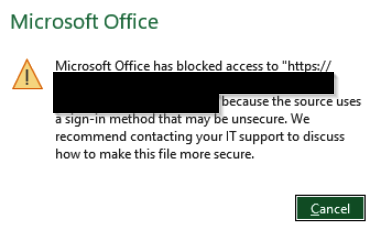
Since Microsoft released a patch for Windows in Q4-2023, access to WebDav shares which use basic authentication is blocked:

Example

Office Error WebDav sign-in method

Example with ionos webdav share:

English: "Microsoft Office has blocked access to https://webdav.hidrive.ionos.com because the source uses a sign-in method that may be unsecure

German: "Microsoft Office hat den Zugriff auf https://webdav.hidrive.ionos.com blockiert, da die Quelle eine Anmeldemethode verwendet, die möglicherweise unsicher ist."


Solution

To fix this, you have to add the following registry key to Windows 11 with the URL to your destination (in this example it is webdav.hidrive.ionos.com):

[HKEY_CURRENT_USER\Software\Microsoft\Office\16.0\Common\Identity]
"basichostallowlist"="webdav.hidrive.ionos.com" 


AKS Security - SIEM UseCase of Get Credentials

A SIEM usecase or forensic security alert for Azure Kubernetes Service AKS should be setup for az aks get-credentials as it reveals sensitive data of AKS.

Example for Azure Cloud Shell Bash:

azureksmoq [ ~ ]$
azureksmoq [ ~ ]$ az aks get-credentials --resource-group rgaks04app23 --name AKS04
Merged "AKS04" as current context in /home/azureksmoq/.kube/config
azureksmoq [ ~ ]$ 
azureksmoq [ ~ ]$
azureksmoq [ ~ ]$ cat /home/azureksmoq/.kube/config
apiVersion: v1
clusters:
- cluster:
    certificate-authority-data: LS0tLS1CRUdJTiBDRVJUSUZ[...]RVJUSUZJQ0FURS0tLS0tCg==
    server: https://mykubernetescluster-dns-[...].hcp.eastus.azmk8s.io:443
  name: AKS04
contexts:
- context:
    cluster: AKS04
    user: clusterUser_rgaks04app23_AKS04
  name: AKS04
current-context: AKS04
kind: Config
preferences: {}
users:
- name: clusterUser_rgaks04app23_AKS04
  user:
    client-certificate-data: LS0tLS1CRUdJTiBDRVJUSUZJQ[...]RS0tLS0tCg==
    client-key-data: LS0tLS1CRUdJTiBSU0EgUFJJV[...]0VZLS0tLS0K
    token: bl0c8ko2[...]73m4ltf
azureksmoq [ ~ ]$ 
azureksmoq [ ~ ]$ 

This command can be helpful for developers or admins - but it is dual use as it reveals sensitive information. I recommend increasing your SIEM risk score or even make a use case with alerting.

Azure Documentation

Microsoft documentation for az aks get-credentials can be found here: https://learn.microsoft.com/en-us/cli/azure/aks?view=azure-cli-latest#az-aks-get-credentials or see here: https://azure.github.io/kubelogin/quick-start.html. See also https://learn.microsoft.com/en-us/azure/aks/control-kubeconfig-access

Get access credentials for a managed Kubernetes cluster.

By default, the credentials are merged into the .kube/config file so kubectl can use them. See -f parameter for details.

az aks get-credentials --name
                       --resource-group
                       [--admin]
                       [--context]
                       [--file]
                       [--format]
                       [--overwrite-existing]
                       [--public-fqdn]

Examples

Get access credentials for a managed Kubernetes cluster. (autogenerated)

az aks get-credentials --name MyManagedCluster --resource-group MyResourceGroup

Required Parameters

--name -n

Name of the managed cluster.

--resource-group -g

Name of resource group. You can configure the default group using az configure --defaults group=<name>.

Optional Parameters

--admin -a

Get cluster administrator credentials. Default: cluster user credentials.

default value: False
--context

If specified, overwrite the default context name. The --admin parameter takes precedence over --context.

--file -f

Kubernetes configuration file to update. Use "-" to print YAML to stdout instead.

default value: ~\.kube\config
--format

Specify the format of the returned credential. Available values are ["exec", "azure"]. Only take effect when requesting clusterUser credential of AAD clusters.

--overwrite-existing

Overwrite any existing cluster entry with the same name.

default value: False
--public-fqdn

Get private cluster credential with server address to be public fqdn.

default value: False
Global Parameters
--debug

Increase logging verbosity to show all debug logs.

--help -h

Show this help message and exit.

--only-show-errors

Only show errors, suppressing warnings.

--output -o

Output format.

--query

JMESPath query string. See http://jmespath.org/ for more information and examples.

--subscription

Name or ID of subscription. You can configure the default subscription using az account set -s NAME_OR_ID.

--verbose

Increase logging verbosity. Use --debug for full debug logs.


Microsoft Portals overview - msportals.io

The website msportals.io is listing a nice overview of Microsofts portals. For example administrator portals:

Microsoft 365 Admin Portals


Many more can be found on
msportals.io.


Windows fileless persistence local privilege escalation using sc.exe sdset

Alh4zr3d and Grzegorz Tworek wrote about a fileless, local privilege escalation backdoor in order to gain persistence (TA0003) using the following Windows command:

sc.exe sdset scmanager D:(A;;KA;;;WD) 

Windows sc.exe persistence fileless backdoor

Setting the security descriptor on the service manager allows anyone to start SYSTEM services.

To show the security descriptor of service manager:

sc.exe sdshow scmanager


The Mitre Att&ck framework has technique T1569.002 for this "System Services: Service Execution", writing: "Adversaries may abuse the Windows service control manager to execute malicious commands or payloads. The Windows service control manager (services.exe) is an interface to manage and manipulate services. The service control manager is accessible to users via GUI components as well as system utilities such as sc.exe and Net."

Microsofts own documentation about sc.exe sdset:

Sets a service's security descriptor, using the Service Descriptor Definition Language (SDDL).

Syntax

sc [<ServerName>] sdset <ServiceName> <ServiceSecurityDescriptor>

Parameters

Parameter

Description

<ServerName>

Specifies the name of the remote server on which the service is located. The name must use the Universal Naming Convention (UNC) format (for example, \\myserver). To run SC.exe locally, omit this parameter.

<ServiceName>

Specifies the service name returned by the getkeyname operation.

<ServiceSecurityDescriptor>

Specifies the service descriptor in SDDL.

/?

Displays help at the command prompt.


To explain the DACL D:(A;;KA;;;WD) gav_gall asked ChatGPT to explain:

ChatGPT DACL Windows persistence backdoor


New LAPS version explained

Microsoft will release a new version of Local Administrator Password Solution (LAPS), which   provides new Azure AD features as well as new Active Directory OnPrem features and some migration features from the old version to the new one.

A video explaining everything in detail can be found here:


This video includes a nice overview showing how LAPS is working internally using CSP (lapscsp.dll), PowerShell (lapspsh.dll) or GPOs and LAPS core logic (laps.dll) which then reads and updates the expiry of accounts as well as updates their password, either in Azure Active Directory or in Windows Server Active Directory on premise:LAPS internal logic and flow architecture

Source: https://learn.microsoft.com/en-us/windows-server/identity/laps/laps-concepts

LAPS can be used as solution against pass-the-hash (https://attack.mitre.org/techniques/T1550/002) and lateral-traversal attacks (https://attack.mitre.org/tactics/TA0008), as well as for securing user help desk access or recover to devices with a fine-grained security model and for RBAC in Azure AD.


Security Testing - Review LAPS

It is a good idea to review your companys Microsoft's Local Administrator Password Solution LAPS installation. Leo Loobeek published a nice powershell-script which helps in finding groups which are specifically delegated by sysadmins and finding users with "All Extended Rights" that can view passwords, and viewing all computers with LAPS enabled.

https://github.com/leoloobeek/LAPSToolkit
https://github.com/leoloobeek/LAPSToolkit/blob/master/LAPSToolkit.ps1

  • Get-LAPSComputers
    Displays all computers with LAPS enabled, password expriation, and password if user has access

  • Find-LAPSDelegatedGroups
    Searches through all OUs to see which AD groups can read the ms-Mcs-AdmPwd attribute

  • Find-AdmPwdExtendedRights
    Parses through ExtendedRights for each AD computer with LAPS enabled and looks for which group has read access and if any user has "All Extended Rights". Sysadmins may not be aware the users with All Extended Rights can view passwords and may be less protected than the users in the delegated groups. An example is the user which adds a computer to the domain automatically receives the "All Extended Rights" permission. Since this function will parse ACLs for each AD computer, this can take very long with a larger domain.
I've seen installations, where LAPS was implemented to improve security. However due to wrong configuration way to many people where able to read passwords in Active Directory (Mitre Att&ck Tactic Credential Access)

Microsoft Windows Defender AntiVirus Performance analysis

When you suspect your Microsoft Defender Antivirus to be a bottleneck for your Windows performance, then you may use Microsofts Defender Antivirus performance analyzer. It helps you with the on-premise Windows Defender Antivirus as well as with the cloud solution Microsoft Defender for Endpoint (Defender ATP).

https://docs.microsoft.com/en-us/microsoft-365/security/defender-endpoint/tune-performance-defender-antivirus?view=o365-worldwide

Especially on developer systems with an IDE Microsoft Defender Antivirus can have a significant performance impact on your system due to the many temporary files, which are not digitally signed but contain exectuable code. Microsofts Defender Antivirus performance can help you to detect:

  • Files with long antivirus scan times
  • Processes with long antivirus scan times
  • File extensions with long antivirus scan times 

Running defender antivirus performance analyzer

  1. Run PowerShell (Admin)
  2. Use the PowerShell command New-MpPerformanceRecording -RecordTo how2itsec-analyze-microsoft-antivirus.etl
  3. Repeate your performance issue, e.g. building your software or opening a programm
  4. Press Enter to stop the trace

Defender Antivirus performance analysis etl

Analysis of the trace 

You can analyze your results using the Get-MpPerformanceReportparameter with one of the following arguments:
Get-MpPerformanceReport    [-Path] <String>
[-TopScans <Int32>]
[-TopFiles  <Int32>
    [-TopScansPerFile <Int32>]
    [-TopProcessesPerFile  <Int32>
        [-TopScansPerProcessPerFile <Int32>]
    ]
]
[-TopExtensions  <Int32>
    [-TopScansPerExtension <Int32>]
    [-TopProcessesPerExtension <Int32>
        [-TopScansPerProcessPerExtension <Int32>]
        ]
    [-TopFilesPerExtension  <Int32>
        [-TopScansPerFilePerExtension <Int32>]
        ]
    ]
]
[-TopProcesses  <Int32>
    [-TopScansPerProcess <Int32>]
    [-TopExtensionsPerProcess <Int32>
        [-TopScansPerExtensionPerProcess <Int32>]
    ]
]
[-TopFilesPerProcess  <Int32>
    [-TopScansPerFilePerProcess <Int32>]
]
[-MinDuration <String>]
[-Raw]

Example Analysis

Get-MpPerformanceReport -Path .\how2itsec-analyze-microsoft-antivirus.etl -TopFiles 10Get-MpPerformanceReport Defender analysis1

Get-MpPerformanceReport -Path .\how2itsec-analyze-microsoft-antivirus.etl -TopFiles 10 -TopScansPerFile 3 Get-MpPerformanceReport Defender analysis files scans per file

Get-MpPerformanceReport -Path .\how2itsec-analyze-microsoft-antivirus.etl -TopExtensions:10 -TopProcesses:10 -TopScans:10Get-MpPerformanceReport Defender analysis2 Top processes top scans per file

Get-MpPerformanceReport -Path .\how2itsec-analyze-microsoft-antivirus.etl -TopScans:100 -MinDuration:100msGet-MpPerformanceReport Defender analysis3 processes scan duration

Get-MpPerformanceReport -Path .\how2itsec-analyze-microsoft-antivirus.etl -TopScans:100 -MinDuration:500ms -Raw | ConvertTo-Js

Debug Windows Defender AntiVirus Performance JSON

Optimize performance 

Based on your analysis results you can carefully set exclusions or adjust parameters in Windows Defender or Defender for Endpoint (Defender ATP) in order to boost performance.

Quick win securing Azure AD

An easy quick win for securing Azure Active Directory passwords is the feature "Azure AD Password Protection". This helps you in mitre att&cks tactic credential access, for example in the technique brute force and its sub-techniques password guessing, password spraying, credential stuffing, etc.

Users are recommended to avoide simple passwords and instead should use pass-sentences. Password breaches of the recent past reveal that the majority still chose simple passwords. Azure AD Password Protection finds (audit mode) or enforces (enforce mode) stronger passwords for everybody. There is a hidden global banned password list which is applied to every user in the Azure AD tenant. Additionally you can block custom words like your companys name, your companys slogan, the founders or CEOs name, most used childerens names or your country or famous sport team names, which are often used as weak passwords.

Azure AD security custom banned passwords

Microsoft promises the "password validation algorithm" automatically detects/blocks variants and combinations like "password!1", "!password", "p@ssw0rd" and so on.

This is also available for on-premise Active Directory using an agent:

On-Premise Active Directory security quick win


However this needs an additional license, you need to install and agent on your domain controllers, you need to reboot the domain controllers and you need Azure AD. Also you do not see the changing content of Microsofts global password list and there is no enforcement based on Active Directory groups or OUs, so you for example cant just enforce it to priviledged accounts but must enforce it for everybody.

Of course I highly recommend to use Multi Factor Authentication MFA everywhere.

Azure CLI - list ip-addresses & show Azure Network Security Group & create Azure NSG rule

A few basic tasks in Microsoft Azure via CLI.  In order to use microsegmentation or zero-trust-networking in Azure (which I highly recommend), I recommend to work with Azure Network Security Groups.

List Azure VM ip-addresses

Azure:~$
Azure:~$ az vm list-ip-addresses
[
  {
    "virtualMachine": {
      "name": "my-vm",
      "network": {
        "privateIpAddresses": [
          "10.0.0.4"
        ],
        "publicIpAddresses": [
          {
            "id": "/subscriptions/9aaaaaaa-aaaa-aaaa-aaaa-aaaaaaaaaaaa7/resourceGroups/learn-f00
f00f0-f00f-f00f-f00f-f00f00f00f00/providers/Microsoft.Network/publicIPAddresses/my-vmPublicIP",
            "ipAddress": "13.64.0.1",
            "ipAllocationMethod": "Dynamic",
            "name": "my-vmPublicIP",
            "resourceGroup": "
learn-f00f00f0-f00f-f00f-f00f-f00f00f00f00"
          }
        ]
      },
      "resourceGroup": "
learn-f00f00f0-f00f-f00f-f00f-f00f00f00f01"
    }
  }

Azure:~$
Azure:~$ 

Put IP-address of VM in variable

IPADDRESS="$(az vm list-ip-addresses \
  --resource-group learn-f00f00f0-f00f-f00f-f00f-f00f00f00f00 \
  --name my-vm \
  --query "[].virtualMachine.network.publicIpAddresses[*].ipAddress" \
  --output tsv)"


Azure:~$
Azure:~$ IPADDRESS="$(az vm list-ip-addresses \
>   --resource-group learn-f00f00f0-f00f-f00f-f00f-f00f00f00f00 \
>   --name my-vm \
>   --query "[].virtualMachine.network.publicIpAddresses[*].ipAddress" \
>   --output tsv)"
Azure:~$
Azure:~$
Azure:~$ echo $IPADDRESS
13.64.0.1
Azure:~$
Azure:~$
Azure:~$ curl --connect-timeout 5 http://$IPADDRESS
curl: (28) Connection timed out after 5000 milliseconds


Show Azure Network Security Group

Azure:~$
Azure:~$ az network nsg list \
>   --resource-group learn-f00f00f0-f00f-f00f-f00f-f00f00f00f00 \
>   --query '[].name' \
>   --output tsv
my-vmNSG
Azure:~$
Azure:~$

Azure Network Security Group Name = my-vmNSG

What is defined in Network Security Group Name my-vmNSG?

Azure:~$
Azure:~$
Azure:~$ az network nsg rule list \
>   --resource-group
learn-f00f00f0-f00f-f00f-f00f-f00f00f00f00 \
>   --nsg-name my-vmNSG
[
  {
    "access": "Allow",
    "description": null,
    "destinationAddressPrefix": "*",
    "destinationAddressPrefixes": [],
    "destinationApplicationSecurityGroups": null,
    "destinationPortRange": "22",
    "destinationPortRanges": [],
    "direction": "Inbound",
    "etag": "W/\"ae2
ae2ae-ae2a-ae2a-ae2a-ae2aae2aae2a\"",
    "id": "/subscriptions/
9aaaaaaa-aaaa-aaaa-aaaa-aaaaaaaaaaaa7/resourceGroups/learn-f00f00f0-f00f-f00f-f00f-f00f00f00f00/providers/Microsoft.Network/networkSecurityGroups/my-vmNSG/securityRules/default-allow-ssh",
    "name": "default-allow-ssh",
    "priority": 1000,
    "protocol": "Tcp",
    "provisioningState": "Succeeded",
    "resourceGroup": "
learn-f00f00f0-f00f-f00f-f00f-f00f00f00f01",
    "sourceAddressPrefix": "*",
    "sourceAddressPrefixes": [],
    "sourceApplicationSecurityGroups": null,
    "sourcePortRange": "*",
    "sourcePortRanges": [],
    "type": "Microsoft.Network/networkSecurityGroups/securityRules"
  }
]
Azure:~$
Azure:~$

Show again that JSON formated by Name, Prio, Dst-Port & Access-Action:

Azure:~$
Azure:~$ az network nsg rule list \
>   --resource-group
learn-f00f00f0-f00f-f00f-f00f-f00f00f00f01 \
>   --nsg-name my-vmNSG \
>   --query '[].{Name:name, Priority:priority, Port:destinationPortRange, Access:access}' \
>   --output table
Name               Priority    Port    Access
-----------------  ----------  ------  --------
default-allow-ssh  1000        22      Allow
Azure:~$
Azure:~$

Create Azure Network Security Group Rule for HTTP

Azure:~$
Azure:~$ az network nsg rule create \
>   --resource-group learn-f00f00f0-f00f-f00f-f00f-f00f00f00f01 \
>   --nsg-name my-vmNSG \
>   --name allow-http \
>   --protocol tcp \
>   --priority 100 \
>   --destination-port-range 80 \
>   --access Allow
{- Finished ..
  "access": "Allow",
  "description": null,
  "destinationAddressPrefix": "*",
  "destinationAddressPrefixes": [],
  "destinationApplicationSecurityGroups": null,
  "destinationPortRange": "80",
  "destinationPortRanges": [],
  "direction": "Inbound",
  "etag": "W/\"ae2ae2ae-ae2a-ae2a-ae2a-ae2aae2aae2a\"",
  "id": "/subscriptions/9aaaaaaa-aaaa-aaaa-aaaa-aaaaaaaaaaaa7/resourceGroups/learn-f00f00f0-f00f-f00f-f00f-f00f00f00f01/providers/Microsoft.Network/networkSecurityGroups/my-vmNSG/securityRules/allow-http",
  "name": "allow-http",
  "priority": 100,
  "protocol": "Tcp",
  "provisioningState": "Succeeded",
  "resourceGroup": "learn-f00f00f0-f00f-f00f-f00f-f00f00f00f01",
  "sourceAddressPrefix": "*",
  "sourceAddressPrefixes": [],
  "sourceApplicationSecurityGroups": null,
  "sourcePortRange": "*",
  "sourcePortRanges": [],
  "type": "Microsoft.Network/networkSecurityGroups/securityRules"
}
Azure:~$
Azure:~$

Show that in JSON:

Azure:~$
Azure:~$ az network nsg rule list \
>   --resource-group learn-f00f00f0-f00f-f00f-f00f-f00f00f00f01 \
>   --nsg-name my-vmNSG
[
  {
    "access": "Allow",
    "description": null,
    "destinationAddressPrefix": "*",
    "destinationAddressPrefixes": [],
    "destinationApplicationSecurityGroups": null,
    "destinationPortRange": "22",
    "destinationPortRanges": [],
    "direction": "Inbound",
    "etag": "W/\"ae2ae2ae-ae2a-ae2a-ae2a-ae2aae2aae2a\"",
    "id": "/subscriptions/9aaaaaaa-aaaa-aaaa-aaaa-aaaaaaaaaaaa7/resourceGroups/learn-f00f00f0-f00f-f00f-f00f-f00f00f00f01/providers/Microsoft.Network/networkSecurityGroups/my-vmNSG/securityRules/default-allow-ssh",
    "name": "default-allow-ssh",
    "priority": 1000,
    "protocol": "Tcp",
    "provisioningState": "Succeeded",
    "resourceGroup": "learn-f00f00f0-f00f-f00f-f00f-f00f00f00f01",
    "sourceAddressPrefix": "*",
    "sourceAddressPrefixes": [],
    "sourceApplicationSecurityGroups": null,
    "sourcePortRange": "*",
    "sourcePortRanges": [],
    "type": "Microsoft.Network/networkSecurityGroups/securityRules"
  },
  {
    "access": "Allow",
    "description": null,
    "destinationAddressPrefix": "*",
    "destinationAddressPrefixes": [],
    "destinationApplicationSecurityGroups": null,
    "destinationPortRange": "80",
    "destinationPortRanges": [],
    "direction": "Inbound",
    "etag": "W/\"ae2ae2ae-ae2a-ae2a-ae2a-ae2aae2aae2a\"",
    "id": "/subscriptions/9aaaaaaa-aaaa-aaaa-aaaa-aaaaaaaaaaaa7/resourceGroups/learn-f00f00f0-f00f-f00f-f00f-f00f00f00f01/providers/Microsoft.Network/networkSecurityGroups/my-vmNSG/securityRules/allow-http",
    "name": "allow-http",
    "priority": 100,
    "protocol": "Tcp",
    "provisioningState": "Succeeded",
    "resourceGroup": "learn-f00f00f0-f00f-f00f-f00f-f00f00f00f01",
    "sourceAddressPrefix": "*",
    "sourceAddressPrefixes": [],
    "sourceApplicationSecurityGroups": null,
    "sourcePortRange": "*",
    "sourcePortRanges": [],
    "type": "Microsoft.Network/networkSecurityGroups/securityRules"
  }
]
Azure:~$
Azure:~$
Azure:~$ az network nsg rule list \
>   --resource-group learn-f00f00f0-f00f-f00f-f00f-f00f00f00f01 \
>   --nsg-name my-vmNSG \
>   --query '[].{Name:name, Priority:priority, Port:destinationPortRange, Access:access}' \
>   --output table
Name               Priority    Port    Access
-----------------  ----------  ------  --------
default-allow-ssh  1000        22      Allow
allow-http         100         80      Allow
Azure:~$
Azure:~$

Monitor UniFi WLAN Access Point with PRTG with SNMPv3 Auth+Encrypted

This is a tiny guide howto monitor your UniFi wireless accesspoint, in this case a Unifi U7 pro with SNMPv3 with AES-Encryption and SHA-Auth...