Showing posts with label Windows Server. Show all posts

Microsoft Portals overview - msportals.io

The website msportals.io is listing a nice overview of Microsofts portals. For example administrator portals:

Microsoft 365 Admin Portals


Many more can be found on
msportals.io.


New LAPS version explained

Microsoft will release a new version of Local Administrator Password Solution (LAPS), which   provides new Azure AD features as well as new Active Directory OnPrem features and some migration features from the old version to the new one.

A video explaining everything in detail can be found here:


This video includes a nice overview showing how LAPS is working internally using CSP (lapscsp.dll), PowerShell (lapspsh.dll) or GPOs and LAPS core logic (laps.dll) which then reads and updates the expiry of accounts as well as updates their password, either in Azure Active Directory or in Windows Server Active Directory on premise:LAPS internal logic and flow architecture

Source: https://learn.microsoft.com/en-us/windows-server/identity/laps/laps-concepts

LAPS can be used as solution against pass-the-hash (https://attack.mitre.org/techniques/T1550/002) and lateral-traversal attacks (https://attack.mitre.org/tactics/TA0008), as well as for securing user help desk access or recover to devices with a fine-grained security model and for RBAC in Azure AD.


Microsoft SmartScreen - Mark of the Web Zone.Identifier ReferrerUrl in NTFS Alternate DataStream

From where does Windows know, if a file is from a trusted or untrusted source? Microsofts Smartscreen writes the downloaded origin into the NTFS Alternate DataStreams of the file. In earlier version of windows it was the Zone, since Windows10 its the source URL, too. 

Example: I've downloaded procexp.com from https://live.sysinternals.com/procexp.exe:

SmartScreen Zone.Identifier NTFS Alternate Datastream

as ZoneID, ReferrerURL and HostUrl. This is also called Windows Defender SmartScreen Extended Mark of the Web. 

Additional testing for Microsoft Defender Smartscreen can be found here: https://demo.smartscreen.msft.net/ & https://docs.microsoft.com/en-us/deployedge/microsoft-edge-security-smartscreen

"gpupdate" vs "gpupdate /force" & Group Policy Processing Order

gpupdate vs gpupdate /force

 
Microsoft Windows Group Policy refresh can be manually using the command "gpupdate". There is a option called "/force". The difference between both is:
  • gpupdate = if there are not changes, we dont change anything
  • gpupdate /force = reapply all settings eventhough nothing has changed; changes are immediatly applied

Source: https://docs.microsoft.com/en-us/windows-server/administration/windows-commands/gpupdate

Group Policy Processing Order

With this keep in mind the group policy processing order, in which the group policies are applied to windows:
  1. At first Local Group Policies are applied
  2. Second comes the Site Group Policies
  3. Third are the Domain Group Policies
  4. Final are the OU Group Policies (If there are multiple OUs, they are applied top to down)
Sources: https://docs.microsoft.com/en-us/previous-versions/windows/it-pro/windows-server-2003/cc785665(v=ws.10)?redirectedfrom=MSDN & https://docs.microsoft.com/en-us/previous-versions/windows/it-pro/windows-server-2003/cc757050(v=ws.10)?redirectedfrom=MSDN

Splunk PowerShell SIEM use cases from splunk .conf

Ryan Kovar and Steve Brant from Splunk released on Splunk .conf 2016 a bunch of useful PowerShell SIEM use cases: https://conf.splunk.com/files/2016/slides/hunting-the-known-unknowns-the-powershell-edition.pdf

Finding Un-­encoded IEX Acivity  

Splunk search: sourcetype="WinEventLog:Security" Process_Command_Line=* | evalProcess_Command_Line=lower(Process_Command_Line) | search Process_Command_Line="*iex (new-­‐object net.webclient).downloadstring(*" | stats VALUES(Process_Command_Line) BY host

Screenshot Page 70 from https://conf.splunk.com/files/2016/slides/hunting-the-known-unknowns-the-powershell-edition.pdf

Source: Page 69 and 70 from https://conf.splunk.com/files/2016/slides/hunting-the-known-unknowns-the-powershell-edition.pdf

New Process Started (EventCode 4688)

Splunk search: index=windows source="WinEventLog:Security" (EventCode=4688) NOT (Account_Name=*$) (at.exe OR bcdedit.exe OR chcp.exe OR cmd.exe OR cscript.exe OR ipconfig.exe OR mimikatz.exe OR nbtstat.exe OR nc.exe OR netcat.exe OR netstat.exe OR nmap OR nslookup.exe OR bcp.exe OR sqlcmd.exe OR OSQL.exe OR ping.exe OR powershell.exe OR powercat.ps1 OR psexec.exe OR psexecsvc.exe OR psLoggedOn.exe OR procdump.exe OR rar.exeOR reg.exe OR route.exe OR runas.exe OR sc.exe OR schtasks.exe OR sethc.exe OR ssh.exe OR sysprep.exe OR systeminfo.exe OR system32\\net.exe OR tracert.exe OR vssadmin.exe OR whoami.exe OR winrar.exe OR wscript.exe OR winrm.* OR winrs.* OR wmic.exe OR wsmprovhost.exe) | evalMessage=split(Message,".") | evalShort_Message=mvindex(Message,0) | table _Ome, host, Account_Name, Process_Name, Process_ID, Process_Command_Line, New_Process_Name, New_Process_ID, Creator_Process_ID, Short_Message

Page 83 from https://conf.splunk.com/files/2016/slides/hunting-the-known-unknowns-the-powershell-edition.pdf
 

Source: Page 82 and 83 from https://conf.splunk.com/files/2016/slides/hunting-the-known-unknowns-the-powershell-edition.pdf

Finding Modules (EventCode 4103 or 4104)  

Splunk search: sourcetype="WinEventLog:Microsoft-Windows-PowerShell/Operational" (EventCode=4104) OR (EventCode=4103)(Set-ExecutionPolicyOR Set-MasterBootRecordl OR Get-WMIObject OR Get-GPPPassword OR Get-Keystrokes OR Get-TimedScreenshot OR Get-VaultCredential OR GetServiceUnquoted OR Get-ServiceEXEPerms OR Get-ServicePerms OR Get-RegAlwaysInstallElevated OR Get-RegAutoLogon OR Get-UnattendedInstallFiles OR Get-Webconfig OR Get-ApplicationHost OR Get-PassHashes OR Get-LsaSecret OR GetInformation OR Get-PSADForestInfo OR Get-KerberosPolicy OR Get-PSADForestKRBTGTInfo OR Get-PSADForestInfo OR GetKerberosPolicy OR Invoke-Command OR Invoke-Expression OR iex OR Invoke-Shellcode OR Invoke--Shellcode OR Invoke-ShellcodeMSIL OR InvokeMimikatzWDigestDowngrade OR Invoke-NinjaCopy OR Invoke-CredentialInjection OR Invoke-TokenManipulation OR InvokeCallbackIEX OR Invoke-PSInject OR Invoke-DllEncode OR Invoke-ServiceUserAdd OR Invoke-ServiceCMDOR Invoke-ServiceStart OR Invoke-ServiceStop OR Invoke-ServiceEnable OR Invoke-ServiceDisable OR Invoke-FindDLLHijack OR Invoke-FindPathHijack OR Invoke-AllChecks OR Invoke-MassCommand OR Invoke-MassMimikatz OR Invoke-MassSearch OR Invoke-MassTemplate OR Invoke-MassTokens OR Invoke-ADSBackdoor OR Invoke-CredentialsPhish OR Invoke-BruteForce OR Invoke-PowerShellIcmp OR Invoke-PowerShellUdp OR Invoke-PsGcatAgent OR Invoke-PoshRatHttps OR Invoke-PowerShellTcp OR Invoke-PoshRatHttp OR Invoke-PowerShellWmi OR Invoke-PSGcat OR Invoke-Encode OR Invoke-Decode OR Invoke-CreateCertificate OR InvokeNetworkRelay OR EncodedCommand OR New-ElevatedPersistenceOption OR wsman OR Enter-PSSession OR DownloadString OR DownloadFile OR Out-Word OR Out-Excel OR Out-Java OR Out-Shortcut OR Out-CHM OR Out-HTA OR Out-Minidump OR HTTP-Backdoor OR FindAVSignature OR DllInjection OR ReflectivePEInjection OR Base64 OR System.Reflection OR System.Management OR Restore-ServiceEXE OR Add-ScrnSaveBackdoor OR Gupt-Backdoor OR Execute-OnTime OR DNS_TXT_Pwnage OR WriteUserAddServiceBinary OR Write-CMDServiceBinary OR Write-UserAddMSI OR Write-ServiceEXE OR Write-ServiceEXECMD OR Enable-DuplicateToken  OR Remove-Update OR Execute-DNSTXT-Code OR Download-Execute-PS OR Execute-CommandMSSQL OR Download_Execute OR Copy-VSS OR Check-VM OR Create-MultipleSessions OR Run-EXEonRemote OR Port-Scan OR Remove-PoshRat OR TexttoEXE OR Base64ToString OR StringtoBase64 OR Do-Exfiltration OR Parse_Keys OR Add-Exfiltration OR AddPersistence OR Remove-Persistence OR Find-PSServiceAccounts OR Discover-PSMSSQLServers OR DiscoverPSMSExchangeServers OR Discover-PSInterestingServices OR Discover-PSMSExchangeServers OR DiscoverPSInterestingServices OR Mimikatz OR powercat OR powersploit OR PowershellEmpire OR Payload OR GetProcAddress) 

Page 85 from https://conf.splunk.com/files/2016/slides/hunting-the-known-unknowns-the-powershell-edition.pdf

Source: Page 84 and 85 from https://conf.splunk.com/files/2016/slides/hunting-the-known-unknowns-the-powershell-edition.pdf

SIEM Use Case - find suspicious powershell commands

Microsofts Powershell is a very mighty tool, which can be used as LoLBin. To detect suspicious powershell commands or scripts, a SIEM use case in order to find suspicious powershell-commands can be:

Logging / Data Source

Active PowerShell Script Block Logging (Event ID 4104) OR use your Advanced Endpoint Protection AEP or Endpoint Detection and Response EDR tool like VMware Carbon Black, Microsoft Defender ATP, Crowdstrike or the other tools.

SIEM use case / fetch suspicious powershell

1. process = powershell.exe

&&

2. cmd = ToBase64String OR FromBase64String OR -e OR -en OR -enc OR -enco OR -encod OR -encode OR -encoded OR -encodedc OR -encodedco OR -encodedcom OR -encodedcomm OR -encodedcomma OR -encodedcomman OR -encodedcommand OR -ec

&&

3. not cmd = Windows\CCM\*

More very useful information

Windows 10 start menu critial error fix

A possible solution to the following error in Windows 10 when trying to use the start menu:

English Error:

Critical Error – Your Start menu isn't working. We'll try to fix it the next time you sign in.

German Error:

Schwerwiegender Fehler Ihr Startmenü funktioniert nicht. Wir beheben das Problem, sobald Sie sich neu anmelden. Jetzt abmelden.

Start menu error

Possible solution for Windows 10 start menu

  1. Launch the Task manager
  2. Open a new PowerShell window with administrative privileges


  3. Paste the following line into the PowerShell window

    Get-AppXPackage -AllUsers | Foreach {Add-AppxPackage -DisableDevelopmentMode -Register "$($_.InstallLocation)\AppXManifest.xml"}

    Powershell Command

  4. Ignore the errors and wait until it is finished (a new line PS C:\Windows\system32 is shown)
  5. Reboot Windows

 If that doesnt not help, try sfc /scannow or dism /online /cleanup-image /restorehealth or checkdisk or analyze the issue with procmon.

Real world examples of attack chains with Att&ck mapping

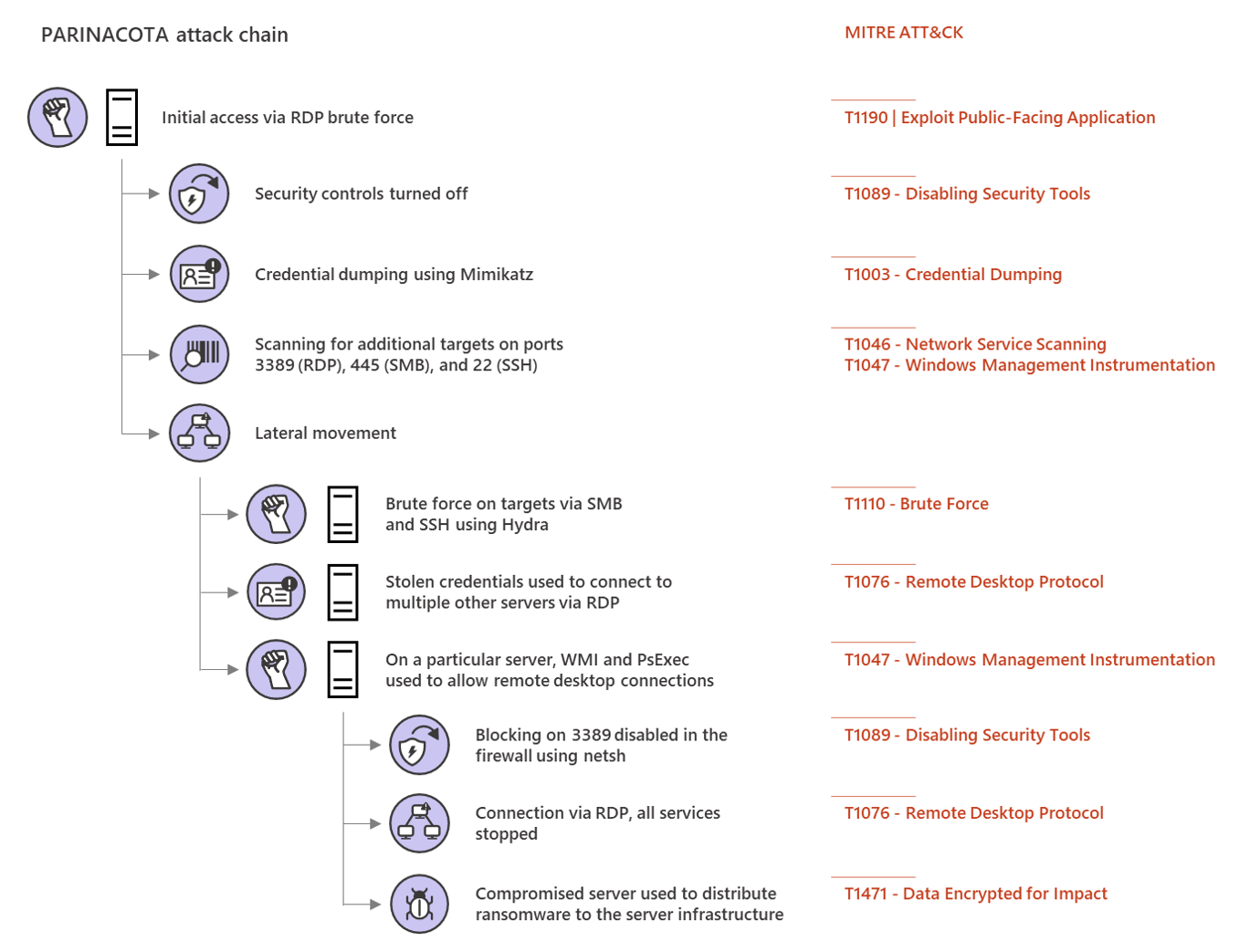
Microsoft Threat Protection Intelligence Team released in the past some great detailed articles (e.g. 2020-03 Ransomware, 2018-03 FinFisher, 2017-05 wannacry, 2017-06 petya) about different real world attack chains including a mapping to MITREs framework Att&ck. 

Parinacota attack chain


Picture from Microsoft Security https://www.microsoft.com/security/blog/2020/03/05/human-operated-ransomware-attacks-a-preventable-disaster/ 
The article on Parinacota includes details like how for example persistence is archived:
  • Windows Registry modifications using .bat or .reg files to allow RDP connections Picture from https://www.microsoft.com/security/blog/2020/03/05/human-operated-ransomware-attacks-a-preventable-disaster/
  • Setting up access through existing remote assistance apps or installing a backdoor
  • Creating new local accounts and adding them to the local administrators group 
    Picture from https://www.microsoft.com/security/blog/2020/03/05/human-operated-ransomware-attacks-a-preventable-disaster/

 Wadhrama attack chain

Microsoft Threat Protection Intelligence Team https://www.microsoft.com/security/blog/2020/03/05/human-operated-ransomware-attacks-a-preventable-disaster/

 Ryuk attack chain

Doppelpaymer attack chain


Microsoft Threat Protection Intelligence Team https://www.microsoft.com/security/blog/2020/03/05/human-operated-ransomware-attacks-a-preventable-disaster/

How to increase IT security of a company using quick wins

How to increase my companys IT security? Of course there are many, many, many topics, processes, systems, parameters, awareness and a lot more to implement, adjust, train, improve or get rid of. Following the different available frameworks like MITREs Att&ck, the recommendations from NIST or BSI etc will get you there. However they require a lot of time and some companys want to implement some 'quick wins', before they do they adopt a whole framework (which they should).

So some of those 'quick wins' are:
  • Implement Multi-Factor-Auth or 2FA. Trying to balance security with comfort will let you win your users, for example by implementing MFA or 2FA using PushTokens. 
  • Raising awareness by regularly sending internal phishing mails will make them learn and understand, not to open or click on everything. 
  • Implementing zero trust or microsegmentation will make lateral movement hard. 
  • Regularly scanning your whole environment for vulnerabilities and configurations issues with regular patching and improving hardening will dramatically reduce your attack surface.
  • Restrict administrative permissions, regularly checking if they are still necessary, implementing JIT and securing your directory services using special jump servers with MFA/2FA will help further. Also don't use Microsofts AD Built-in default groups because very often the have to many unnecessary permissions

Some more are described in an article from Microsoft security blog. I personally don't agree on all of them, but it is a possible approach:

Picture from https://www.microsoft.com/security/blog/2020/03/05/human-operated-ransomware-attacks-a-preventable-disaster/
(Picture from Microsoft security blog)
 
 
Keeping in mind the point of view from an attacker might help:
Picture from https://www.microsoft.com/security/blog/2020/03/05/human-operated-ransomware-attacks-a-preventable-disaster/
 (Picture from Microsoft security blog)

Windows file or folder in use - cant be deleted or modified

When trying to delete files or folders, clean malware, or just modify something on your Windows system, windows won't let you, because the file is open in another programm:

Folder In Use / File In Use
The action can't be completed because the folder or a file in it is open in another program
Chose the folder or file and try again

How to find the program which is using the file?

1. Download Microsofts sysinternals tool "process explorer":

2. Open procexp.exe with admin rights
3. Use the magnifying glass or press CTRL + F


4. Search for the file or foldername (only parts of it will do)

5. Doubleclick the found process or use the process id PID to find the process


In order to show the Handles, which are opened by a process, either go to View\Lower Pane View\Handles or press CTRL+D


6. You can no close the process or close the handle, however closing the handle might crash your application or cause system instability, as process explorer will tell you, too.

Debugging PRTG Enterprise Console Remover

Paessler just released for PRTG a remover for the deprecated Enterprise Console: PRTG Enterprise Console Remover.exe:

You can uninstall standalone installations of the EC via the Windows control panel under Programs and Features.

If the EC was automatically installed as part of a PRTG installation, you can use the PRTG Enterprise Console Removal Tool as of PRTG 20.2.58 to uninstall the EC independently from the PRTG installation.

Click the Windows Start menu and select PRTG Network Monitor, then click Remove PRTG Enterprise Console to remove the EC from your PRTG core server system.
Source: https://kb.paessler.com/en/topic/85851-how-to-uninstall-the-prtg-enterprise-console-from-the-prtg-server

I like to know what programs do => so I traced what actions are done by "PRTG Enterprise Console Remover.exe". This is a screenshot of all the "write" actions with were performed:

Debugging PRTG Enterprise Console Remover Write Actions

The uninstaller checks more paths, registry entries etc, however only those were deleted or modified on my Windows Server 2016 system. I did not have the standalone installation of PRTG Enterprise Console, but the Enterprise Console was automatically installed as part of the PRTG installation.

Windows 10 Core Isolation deactivation via registry

You can deactivate the Windows 10 Core Isolation function by changing the following Registry Key and therefore do "Tampering with Windows 10 Device Protection Security - Switching off Core Isolation or HypervisorEnforcedCodeIntegrity"
HKEY_LOCAL_MACHINE\SYSTEM\CurrentControlSet\Control\DeviceGuard\Scenarios\HypervisorEnforcedCodeIntegrity
Set "Enabled" to
  • 0 = deactivated (off)
  • 1 = activated (on)
Microsoft about Windows 10 Core Isolation or HypervisorEnforcedCodeIntegrity: "Core isolation provides added protection against malware and other attacks by isolating computer processes from your operating system and device. Select 'Core isolation details' to enable, disable, and change the settings for core isolation features."

Mitre ATT&CK tactic: Persistence, Defense Evasion
Mitre ATT&CK sub-technique of T1060 or T1019
Required Permissions: HKEY_LOCAL_MACHINE keys require administrator access to create and modify

Malware using PowerShell - PowerShell Logging "Script Block Logging"

More and more so called "fileless malware" uses powershell in order to execute malicious actions. In order to find possible malicious powershell commands or ps-scripts, it is very useful to log them, automatically send them to your SIEM and analyze them. Also if possible, disable Powershell for your users, but this is in the real-world sometimes hard or even not possible.

1. Disable PowerShell for users if possible via GPO
2. Fileless malware using PowerShell - PowerShell Logging using Script Block Logging

https://docs.microsoft.com/en-us/powershell/module/microsoft.powershell.core/about/about_logging_windows?view=powershell-6#enabling-script-block-logging


Enabling Script Block Logging

When you enable Script Block Logging, PowerShell records the content of all script blocks that it processes. Once enabled, any new PowerShell session logs this information. It's recommended to enable Protected Event Logging.

Using Group Policy

To enable automatic transcription, enable the Turn on PowerShell Script Block Logging feature in Group Policy through Administrative Templates -> Windows Components -> Windows PowerShell.

Using the Registry

Run the following function:
PowerShell
function Enable-PSScriptBlockLogging
{
    $basePath = 'HKLM:\Software\Policies\Microsoft\Windows' +
      '\PowerShell\ScriptBlockLogging'

    if(-not (Test-Path $basePath))
    {
        $null = New-Item $basePath -Force
    }

    Set-ItemProperty $basePath -Name EnableScriptBlockLogging -Value "1"
}
 
Powershell-Commands will be logged in Windows Eventlog with Event-ID 4104.

Windows Server 2016 Backup - error with user of network share

If you are running a Windows Server 2016, are using the integrated Windows Server Backup utility and you want to save the backup to a remote destination, which is a CIFS/SMB network share, then during the setup the following error might occur:


"The user name being used for accessing the remote share folder is not recognized by the local computer."

Soltuion

1. Create a local user at your Windows Server, which has the same username and password as the cifs/smb user
2. Add this user to the "Backup Operators" user group:
3. Go back to setup the backup job using the "Previous" button and click next/finish again -> Your scheduled backup job using a cifs/smb network share should now be created successfully.

Monitor UniFi WLAN Access Point with PRTG with SNMPv3 Auth+Encrypted

This is a tiny guide howto monitor your UniFi wireless accesspoint, in this case a Unifi U7 pro with SNMPv3 with AES-Encryption and SHA-Auth...