Showing posts with label PRTG. Show all posts

Monitor UniFi WLAN Access Point with PRTG with SNMPv3 Auth+Encrypted

This is a tiny guide howto monitor your UniFi wireless accesspoint, in this case a Unifi U7 pro with SNMPv3 with AES-Encryption and SHA-Authentication using PRTG:

  1. Configure SNMP Monitoring in UniFis settings --> CyberSecure --> Traffic Logging --> SNMP Monitoring --> SNMPv3 --> set a unique username and unique long passwordUniFi SNMPv3 PRTG monitoring
  2. UniFi will use SNMPv3 with Encryption Type AES-128 and Authentication Method SHA1. The selected password will be used for Authentication and Encryption.
  3. Create a device in PRTG and edit the device settings to:
    PRTG Unifi SNMP v3


  4. Add PRTG sensors like e.g. the SNMP traffic sensor to monitor the UniFi access points physical (e.g. eth0) and virtual ports VLAN ports (e.g. eth0.100 for VLAN ID 100):


Do not forget to set ACLs and network segmentation, so the SNMP and other management interfaces are only reachable from dedicated source ip-addresses. Also keep in mind, that in SNMPv3 AuthPriv the username is sent in plaintext over the network eventhough you chose with AuthPriv authentication and encryption, as shown in the following screenshot or mentioned in my article from 2018.

SNMPv3 username cleartext even though encrypted


Filter logs in Splunk - example filtering monitor probe checks

When running Splunk you want to filter logs, for example to get rid of the many health check probe querys from your monitoring system.

Example filtering PRTG monitoring probe requests using props.conf and transforms.conf

1. Find the monitoring probes in the logs in splunk, e.g.:

10.148.227.111 - - [18/Jul/2024:23:21:06 +0200] "GET /login HTTP/1.1" 200 12882 "-" "Mozilla/5.0 (compatible; PRTG Network Monitor (www.paessler.com); Windows)"
10.148.227.111 - - [18/Jul/2024:23:21:06 +0200] "GET / HTTP/1.1" 302 5793 "-" "Mozilla/5.0 (compatible; PRTG Network Monitor (www.paessler.com); Windows)"
10.148.227.111 - - [18/Jul/2024:23:20:56 +0200] "GET /login HTTP/1.1" 200 12882 "-" "Mozilla/5.0 (compatible; PRTG Network Monitor (www.paessler.com); Windows)"
10.148.227.111 - - [18/Jul/2024:23:20:56 +0200] "GET / HTTP/1.1" 302 5790 "-" "Mozilla/5.0 (compatible; PRTG Network Monitor (www.paessler.com); Windows)"
10.148.227.121 - - [18/Jul/2024:23:12:17 +0200] "GET /login HTTP/1.1" 200 17480 "-" "Mozilla/5.0 (compatible; PaesslerCloudBot/1.0; https://www.paessler.com; 576bb8887fe66b1eece876e62e701b9e)"
10.148.227.121 - - [18/Jul/2024:23:12:16 +0200] "GET / HTTP/1.1" 302 5572 "-" Mozilla/5.0 (compatible; PaesslerCloudBot/1.0; https://www.paessler.com;
576bb8887fe66b1eece876e62e701b9e)"
10.148.227.121 - - [18/Jul/2024:23:12:15 +0200] "GET /login HTTP/1.1" 200 17486 "-" "Mozilla/5.0 (compatible; PaesslerCloudBot/1.0; https://www.paessler.com;
576bb8887fe66b1eece876e62e701b9e)"
10.148.227.121 - - [18/Jul/2024:23:12:15 +0200] "GET /login HTTP/1.1" 200 17474 "-" "Mozilla/5.0 (compatible; PaesslerCloudBot/1.0; https://www.paessler.com;
576bb8887fe66b1eece876e62e701b9e)"

2. Create a regex, which finds the logs (which a precise match but as less cpu steps as possible) using https://regex101.com/

regex101.com regex splunk filter

In this example the following regexes where used:

Mozilla\/\d+\.\d+\s+\(compatible;\s+PRTG\s+Network\s+Monitor
Mozilla\/\d.\d\s\(compatible\;\sPaesslerCloudBot\/\d.\d


3. Create a dedicated splunk app for this log source or use the default splunk search app and modify the props.conf. Create an entry which you map to the host, source or sourcetype and tell it to use transforms.conf:

uspunk@ubu2401spl:/opt/splunk/etc/apps/search/local#
uspunk@ubu2401spl:/opt/splunk/etc/apps/search/local# cat props.conf
[...]

#filter prtg monitoring logs
[host::fqdn.of.logsource]
TRANSFORMS-t1=filter-prtg-from-access
TRANSFORMS-t2=filter-prtgcloud-from-access

4. Modify the transforms.conf of this same splunk app. Create an entry which you map to the host, source or sourcetype and force it to the nullQueue:

uspunk@ubu2401spl:/opt/splunk/etc/apps/search/local#
uspunk@ubu2401spl:/opt/splunk/etc/apps/search/local# cat transforms.conf
#filter prtg logs von access.log von nextcloud
#
[filter-prtg-from-access]
REGEX = Mozilla\/\d.\d\s\(compatible\;\sPRTG\sNetwork\sMonitor
DEST_KEY = queue
FORMAT = nullQueue

[filter-prtgcloud-from-access]
REGEX = Mozilla\/\d.\d\s\(compatible\;\sPaesslerCloudBot\/\d.\d
DEST_KEY = queue
FORMAT = nullQueue

uspunk@ubu2401spl:/opt/splunk/etc/apps/search/local#

5. Reload the splunk configuration using https://your.splunk.fqdn:8000/en-GB/debug/refresh 

6. Your logs should be filtered. If not, check the btool to see if another splunk configuration takes precedence to your configuration:

./splunk btool props list
./splunk btool props list --debug
./splunk btool transforms list
./splunk btool transforms list --debug

Paessler PRTG 22.4.81.1532 security fix for Cross Site Scripting XSS

Paessler PRTG released version 22.4.81.1532 (stable) in which a PRTG the tag handling system was fixed regarding tag parameters to avoid the risk of a possible Cross Site Scripting (XSS) attack.

Updates are available for PRTG Preview 22.4.81.1504 or PRTG Stable 22.4.81.1532
  • PRTG Stable 22.4.81.1532 sha256 installer exe 0DD1952B8EE8A56F77FBA968366794BFA58ABEFC38151192D378EAF35607091F
  • PRTG Stable 22.4.81.1532 sha256 installer zip 64F4918CE265ED58EC98996516D59AA97BB7BBC614AAD644E2F90C9DAB22F106
  • PRTG Preview 22.4.81.1504 sha256 installer exe: 28F05875EA31067881B2E04B3557F1BBC3D174D2064CCBA3E93BD4F1EC2E7839
  • PRTG Preview 22.4.81.1504 sha256 installer zip A82725C7C7BBA8E116F31030857BD3DE099FF5B7C40248E04A1DB425A617318E
Source: https://www.paessler.com/prtg/history/stable

Paessler PRTG fixes OpenSSL vulnerability CVE-2022-1292

Paesslers PRTG version 22.3.79 will update its internal OpenSSL libraries to 1.0.2ze in order to address and fix CVE-2022-1292. CVE-2022-1292 is categorized as CWE-78 (Improper Neutralization of Special Elements used in an OS Command 'OS Command Injection').

PRTG release notes of version 22.3.79:
[Security] We updated our OpenSSL libraries to version 1.0.2ze that patches CVE-2022-1292.

CVE-2022-1292 is about the OpenSSL c_rehash script, which does not properly sanitise shell metacharacters to prevent command injection.

PRTG Hardening Security CSRF

PRTG version 22.1.74 introduces protection from Cross Site Request Forgery (CSRF) attacks to harden the products security. 
In CSRF the attacker sends the victim an URL with an action, like adding an administrative account, transfering some money to another bankaccount or something similar. When the victim clicks on the link, the (unintended) action is executed with the victims permissions. Implementing XSRF tokens prevent this attack. 
Updating PRTG server to 22.1.74 prevents changes to PRTG via web forms that attackers may use to trick PRTG users into performing requests with the user account's context. (CVE-2021-34547)


Explot payload: 

PRTG user accounts after executing payload:


Monitor Nextclouds API XML via PRTG with Powershell

In order to monitor your Nextcloud API (XML) via PRTG, you can use the following steps: 

https://github.com/flostyen/PRTGScripts/tree/master/PRTG-NextCloud-Status which is a fork of https://github.com/freaky-media/PRTGScripts/blob/master/PRTG-NextCloud-Status/ (I simply added TLSv1.2 support and adjusted the howto guide, all the work was done from freaky-media 😊)

1. Installation in PRTG

1.1 Copy the PS1 File to your PRTG server in the path C:\Program Files (x86)\PRTG Network Monitor\Custom Sensors\EXEXML. If you want to monitoring nextcloud systems from your PRTG remote probes, copy the script to the remote probe.

PRTG add powershell file

1.2 Create the following lookup files NextCloudMessageLookup.ovl, NextCloudStatusCodeLookup.ovl, NextCloudStatusLookup.ovl into your PRTG installation folder C:\Program Files (x86)\PRTG Network Monitor\lookups\custom

PRTG add lookup files

1.3 Reload Lookups:
PRTG GUI -> Setup -> System Administration -> Administrative Tools -> Load Lookups and File Lists -> Go! Button

PRTG reload lookups

2. Configuration in PRTG

2.1 Add the sensor "EXE/Script Advanced" PRTG add sensor 

2.2 Change the sensor name

2.3 Choose in the powershell script PRTG_NextCloud.ps1.

2.4 Add parameter -NCusername *AnExtraNCAdminUser* -NCpassword *StrongPassSentence* -NCURL *YourNCFQDN*

PRTG XML sensor settings

 Result

 
PRTG monitorts Nextcloud API XML via PowerShell Script Screenshot

ISP Vodafone DOCSIS 3 - 365 Days Monitoring PacketLoss

I've been using the ISP Vodafone (formerly Unitymedia) and I've upgraded end of April from 400 down/20 up MBits to Gigabit down/50 up MBits. I'm monitoring different destinations in the internet using PRTG. The destination in the following graph was monitored using an interval of 30s with 5 different ping icmp echo-requests each interval.

Since then the average packet loss went down from ~0,6% to 0,00-0,05%:


Debugging PRTG Enterprise Console Remover

Paessler just released for PRTG a remover for the deprecated Enterprise Console: PRTG Enterprise Console Remover.exe:

You can uninstall standalone installations of the EC via the Windows control panel under Programs and Features.

If the EC was automatically installed as part of a PRTG installation, you can use the PRTG Enterprise Console Removal Tool as of PRTG 20.2.58 to uninstall the EC independently from the PRTG installation.

Click the Windows Start menu and select PRTG Network Monitor, then click Remove PRTG Enterprise Console to remove the EC from your PRTG core server system.
Source: https://kb.paessler.com/en/topic/85851-how-to-uninstall-the-prtg-enterprise-console-from-the-prtg-server

I like to know what programs do => so I traced what actions are done by "PRTG Enterprise Console Remover.exe". This is a screenshot of all the "write" actions with were performed:

Debugging PRTG Enterprise Console Remover Write Actions

The uninstaller checks more paths, registry entries etc, however only those were deleted or modified on my Windows Server 2016 system. I did not have the standalone installation of PRTG Enterprise Console, but the Enterprise Console was automatically installed as part of the PRTG installation.

Publish PRTG using a FortiGate

Hi,

I have been working with FortiGate firewalls and PRTG for 10 years, and I want to share some useful information about how to publish your PRTG server using a FortiGate firewall.

Update
The best way to protect your PRTG is to use VPN (IPSec or WireGuard) or strong authenticatrion like Mutual TLS (client certificate-based authentication). 


A while back, the Paessler blog published posts describing how to use a reverse proxy to load off utilization from a PRTG server. One of the posts covered general information of how to do it, while the other described how to do it with a KEMP LoadMaster. Here I'll explain how to do it with FortiGate firewalls.
Fortinet's documentation is available from their website: http://docs.fortinet.com and a handbout about FortiGate server loadbalancing: http://docs.fortinet.com/d/fortigate-server-load-balancing-56

Only FortiGate FortiOS 5.4, 5.6, 6.0, 6.2 and above support TLS 1.2 in the loadbalancing feature. FortiOS 5.2, 5.0, 4.3 and lower only support TLS 1.1 and TLS 1.0. TLS 1.2 is strongly recommended.

1. Add a virtual server to accept the traffic to be load balanced

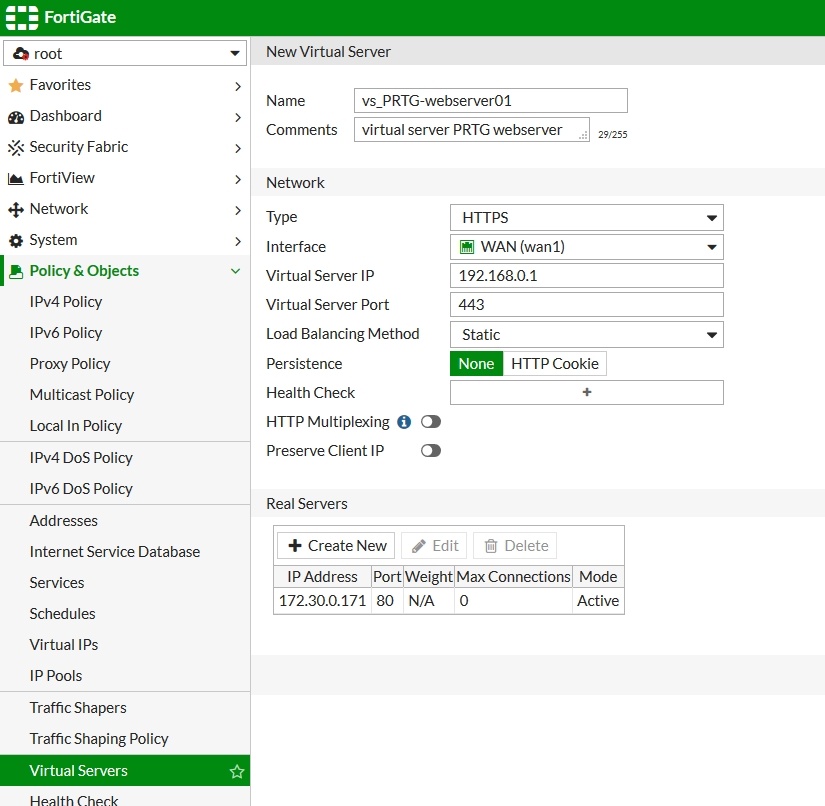
Go to Policy & Objects > Virtual Servers and add a virtual server:FortiGate_LoadBalancing_VirtualServer_PRTG_01-1
Create a new virtual server, select HTTPS as the "Type", enter the external IP address and TCP port, and select the certificate. The certificate has to be loaded in the certificate store of FortiGate (Go to System > Certificates).
Create a new (real) server, and enter the internal IP address and TCP port.

2. Configure additional FortiGate hardening

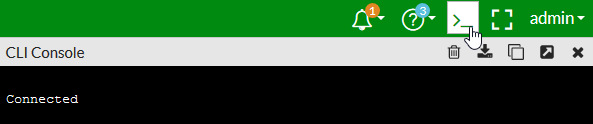
Go to the CLI of the FortiGate device using SSH (e.g. using putty), or use the Web interface's CLI console widget:
FortiGate_LoadBalancing_VirtualServer_PRTG_02-1

Enter the following:
config firewall vip
edit vs_PRTG-webserver01 <-- Name of the chosen virtual server 
set ssl-max-version tls-1.2 <-- Recommendation is to only allow TLS 1.2 
set ssl-min-version tls-1.2 <-- Recommendation is to only allow TLS 1.2 
set ssl-server-algorithm custom <-- Recommendation to harden ciphers 
config ssl-server-cipher-suites 
edit 1
set cipher TLS-ECDHE-ECDSA-WITH-CHACHA20-POLY1305-SHA256
next
edit 2
set cipher TLS-ECDHE-ECDSA-WITH-AES-256-GCM-SHA384
next
end
set ssl-dh-bits 2048 <-- Recommendation to use minimum of 2048 bit for DH* 
ssl-client-renegotiation secure <-- Recommendation to increase client renegotiation
ssl-client-fallback enable <-- Recommendation to enable downgrade attack prevention (TLS_FALLBACK_SCSV, RFC 7507 https://tools.ietf.org/html/rfc7507)
end

*Note: Only FortiGate models with CP9 ASIC processors support 3072/4096 bit DH (Diffie-Hellman) keys in the hardware; other models have to use the FortiGate CPU. FortiGate models with CP8 ASIC processors support up to 2048 bit DH keys in the hardware. For more information about this, go here: 
https://help.fortinet.com/fos50hlp/56/Content/FortiOS/fortigate-load-balancing/ldb-ssl-tls-diffie.htm
 
From FortiOS5.6 and above, FortiGate offers HSTS, which should be used to enforce HTTPS and prevent MitM-Attacks. HSTS can be activated as follows:
set ssl-hsts enable
set ssl-hsts-age 31536000 <-- Browser will rember for 1 Year it must use HTTPS
set ssl-hsts-include-subdomains enable <-- Subdomains are included

 
For more information about load balancing FortiGate devices, take a look at their documentation:
https://help.fortinet.com/fos50hlp/56/Content/FortiOS/fortigate-load-balancing/ldb-ssl-tls-version.htm

3. Check the Configuration

Check the configuration again as follows:
config firewall vip
edit vs_PRTG-webserver01
FortiGate1500D-HA01 (vs_PRTG-webserver01) # get
name : vs_PRTG-webserver01
id : 0
uuid : 123456ab-cdef-1234-4567-1234567890ab
comment : virtual server PRTG webserver
type : server-load-balance
src-filter :
extip : 192.168.0.1
extintf : WAN (wan1)
arp-reply : enable
server-type : https
nat-source-vip : disable
gratuitous-arp-interval: 0
srcintf-filter :
http-ip-header : disable
monitor :
color : 0
ldb-method : static
persistence : none
extport : 443
realservers:
== [ 1 ]
id: 1 ip: 172.30.0.171 port: 80 status: active holddown-interval: 300 max-connections: 0
http-multiplex : disable
ssl-mode : half
ssl-certificate : trusted-certificate-loaded-in-certificate-store
ssl-dh-bits : 2048
ssl-algorithm : custom
ssl-server-cipher-suites: TLS-ECDHE-ECDSA-WITH-CHACHA20-POLY1305-SHA256 TLS-ECDHE-ECDSA-WITH-AES-256-GCM-SHA384
ssl-server-algorithm: client
ssl-pfs : allow
ssl-min-version : tls-1.2
ssl-max-version : tls-1.2
ssl-server-min-version: client
ssl-server-max-version: client
ssl-send-empty-frags: enable
ssl-client-fallback : enable
ssl-client-renegotiation: secure
ssl-client-session-state-type: both
ssl-client-session-state-timeout: 30
ssl-client-session-state-max: 1000
ssl-server-session-state-type: both
ssl-server-session-state-timeout: 60
ssl-server-session-state-max: 100
max-embryonic-connections: 1000


4. Add a WAN1 with the Virtual Server.

Go to Policy & Objects > IPv4 Policy and add a wan1 to internal security policy that includes the virtual server.
In this policy, you can also apply UTM profiles (like Anti-Virus, Intrusion-Prevention, Application-Control, etc.) to the load-balanced sessions.
config firewall policy
edit 0 <-- uses next free policy-id
set srcintf wan1
set srcaddr all
set dstintf internal
set dstaddr vs_PRTG-webserver01
set action accept
set schedule always
set service HTTP <-- service-port of real-server, not virtual server set nat enable <-- only if necessary in your network setup set utm-status enable set profile-protocol-options default set av-profile scan set ips-profile high_security end


5. Test the Configuration

To check if everything worked, you can use different public tools to check your settings. One popular (and good) TLS-checking tool is the tool from SSLLabs: https://www.ssllabs.com/ssltest/analyze.html

6. Harden Security further

In order to make it even more secure, the PRTG webservice can be limited to dedicated IP addresses or (dynamic) FQDNs by setting source-addresses ("set srcaddr") to an address object group in the policy. 

The best way to protect your PRTG is to use VPN (IPSec or WireGuard) or strong authenticatrion like Mutual TLS (client certificate-based authentication), and use a Web Application Firewall WAF. I will try to write an article about howto make your PRTG or webserver available using VPN.


Please note: I have carefully compiled this information and it is provided to the best of my knowledge. As I'm not part of one of the vendors, it is not officially supported by me.
You must also be aware, that if you configure any of the parts incorrectly, you may leave yourself open to an intruder gaining access. This includes User ID's, passwords, IP names, etc. In other words: No warranties are expressed or implied. I cannot be held liable for any damages that you may incur as a result of employing a Reverse Proxy.

Monitor UniFi WLAN Access Point with PRTG with SNMPv3 Auth+Encrypted

This is a tiny guide howto monitor your UniFi wireless accesspoint, in this case a Unifi U7 pro with SNMPv3 with AES-Encryption and SHA-Auth...